
How to Monitor Remote Resources in VSCode Remote
Quick start
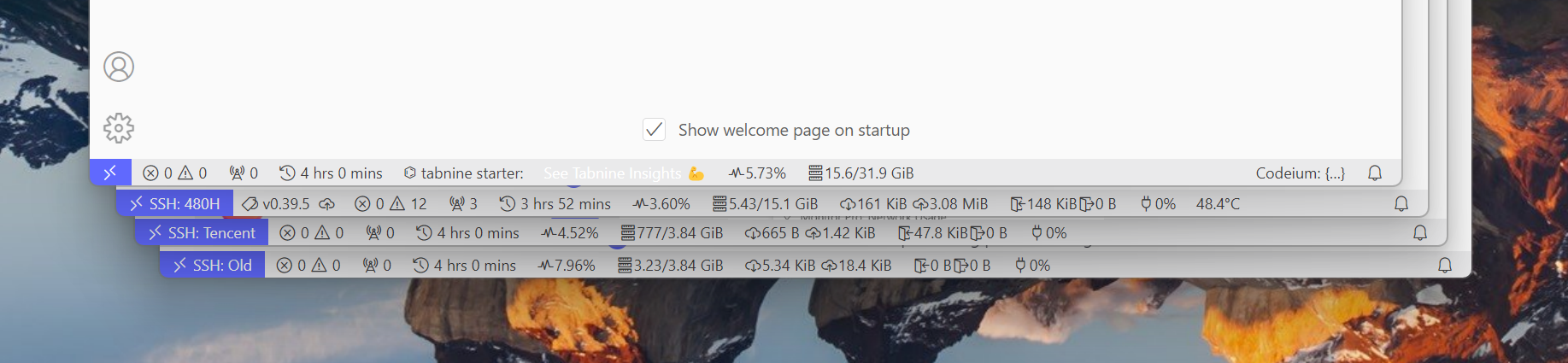
When using VSCode, you can connect to a remote server with the Remote-SSH extension, then monitor server resources with the Monitor Pro extension.
-
Install and configure Remote-SSH:
- Open VSCode and click the Extensions icon in the left sidebar.
- Search for and install the “Remote-SSH” extension.
-
Connect to a remote server:
- After installation, use commands in VSCode’s terminal to connect to the remote server. For example,
ssh username@remote-server-address.
- After installation, use commands in VSCode’s terminal to connect to the remote server. For example,
-
Use Monitor Pro to monitor resources:
- Install the Monitor Pro extension. It helps you track key system metrics in real time and presents them visually.
- After installation, it starts automatically, and you can see CPU, memory, disk, and other usage in the VSCode status bar.
-
Refresh settings:
- Monitor Pro lets you set the refresh interval for resource metrics, ensuring timely updates.
How to install and configure Monitor Pro
Install Monitor Pro
In VSCode, click “Extensions” (or press Ctrl + Shift + X) and search for “Monitor Pro”.
Click “Install” to finish.
Configure Monitor Pro
After installation, you’ll see a new icon in the Activity Bar. Click it to open Monitor Pro.
Configure the metrics you want to monitor in its settings page.
Supported remote monitoring metrics (partial)
- CPU usage: Monitor CPU utilization.
- Memory usage: Track system memory usage.
- Network usage: Monitor network activity.
- File system usage: Track file system usage.
- Battery percentage and charging status: Monitor battery status.
Best practices
-
Track key metrics in real time: Monitor Pro is a comprehensive resource monitoring tool. Check these metrics regularly to ensure system stability and performance.
-
Intuitive visualization: Monitor Pro offers a clear visual presentation, helping you quickly identify bottlenecks and issues.
-
Memory optimization: Although Monitor Pro focuses on resource monitoring, combining it with tools like Memory Monitor and Allocation Tracker can further optimize memory usage. For example, inspect app memory usage and watch GC frequency to detect warning signs like memory thrashing.
-
Custom configuration: Customize Monitor Pro to your needs—focus on specific resources to manage and optimize more effectively.
This message is used to verify that this feed (feedId:42331815237783574) belongs to me (userId:55156152962822144). Join me in enjoying the next generation information browser https://follow.is.