
Using VS Code to Manage Servers: My Unique Approach
Since Typora started charging, I fully switched to VS Code (Visual Studio Code) for writing. As a Markdown editor, it already meets my needs.
Then I started wondering: could VS Code be used as a server manager? Before this, I used FinalShell, which I liked for:
- Simple resource monitoring
- File browsing
- Terminal access
- Multi‑server management
When VS Code released Remote SSH, I didn’t pay much attention. It was meant for remote development, and I didn’t need that. But once I tried remote development, I gave Remote SSH a shot—and was pleasantly surprised. It’s excellent for server management.
So what features of VS Code meet my needs?
VS Code features
Multi‑server management
By configuring SSH keys on servers you want to access, you can set up Remote SSH and specify server IPs to connect directly.
Host server1
    HostName server 1 IP
    User username

Host server2
    HostName server 2 IP
    User username
With this config, you can manage multiple servers in VS Code. Just click a server in the list to connect and operate remotely.
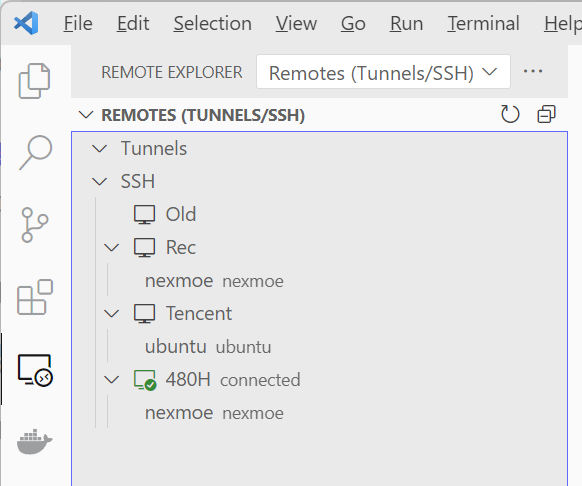
File explorer
Like a normal project, VS Code can open a folder on the server. Then you can do standard file browsing and use search to locate files quickly.
I usually open the account’s home directory directly.
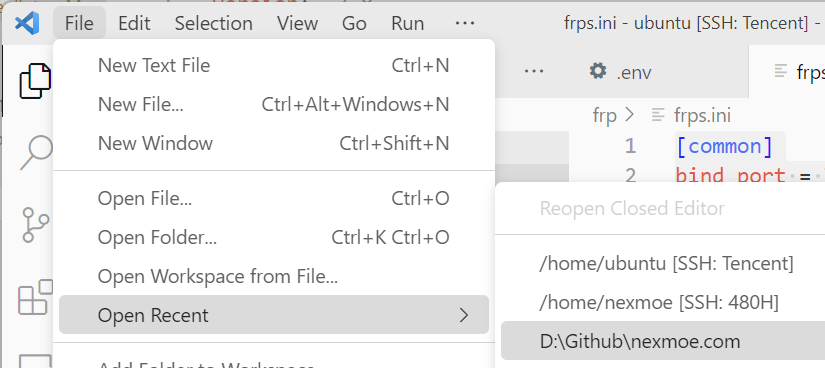
You also get VS Code’s powerful file editing.
Goodbye to ls, mkdir, touch, vi, etc.
Fast terminal experience

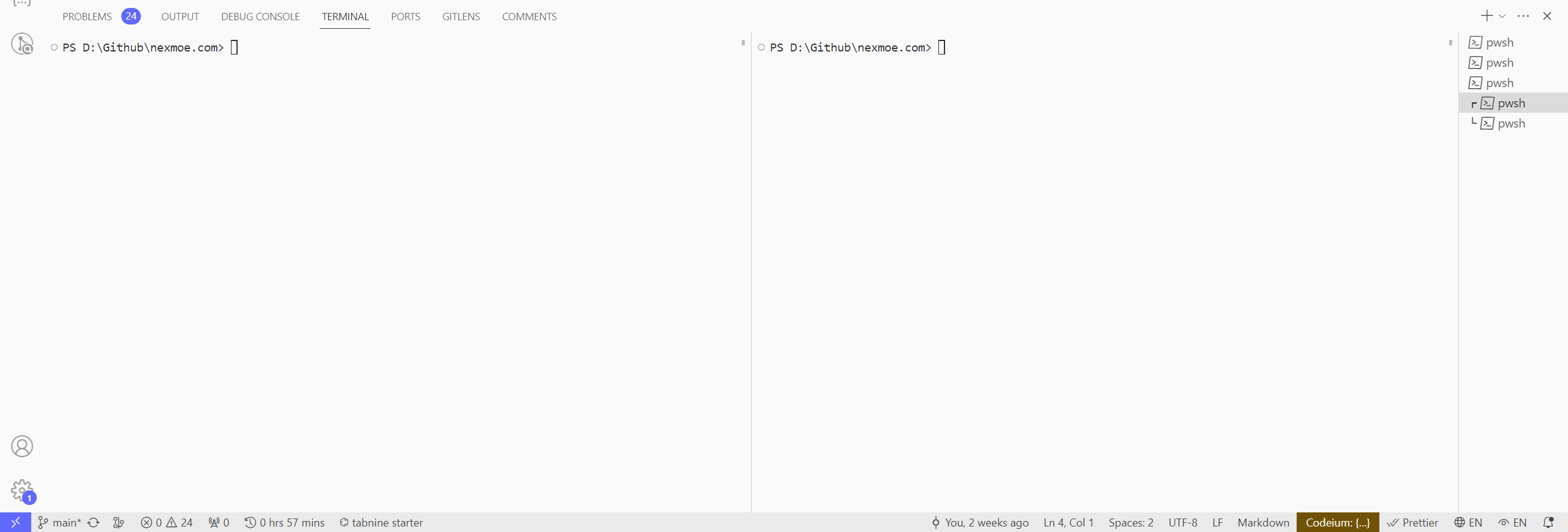
You can open multiple terminal instances and switch between them. Each terminal runs commands independently and keeps its own history.
You can also open terminals in multiple tabs or split views to run commands in parallel.
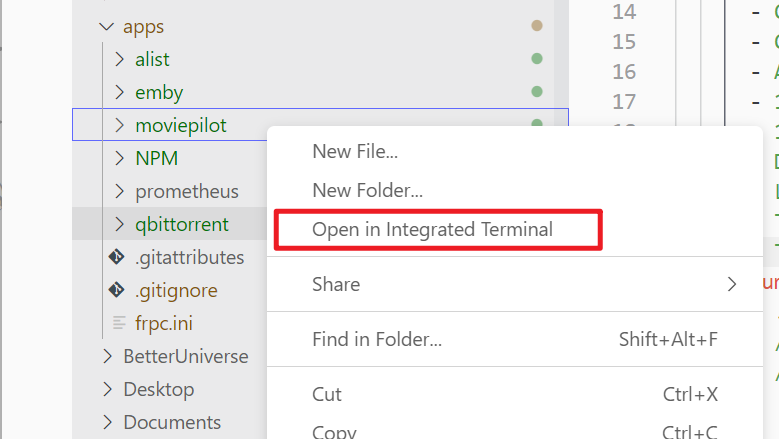
In addition, right‑click any file or folder and choose “Open in Terminal” to jump directly to that path—no more painful cd everywhere.
Docker GUI management
Most of my services run in Docker, so I use it frequently.
If you use Docker on servers, VS Code usually recommends the Docker extension, which lets you manage containers in a GUI: view containers/images/networks/volumes, run common commands, and monitor logs.
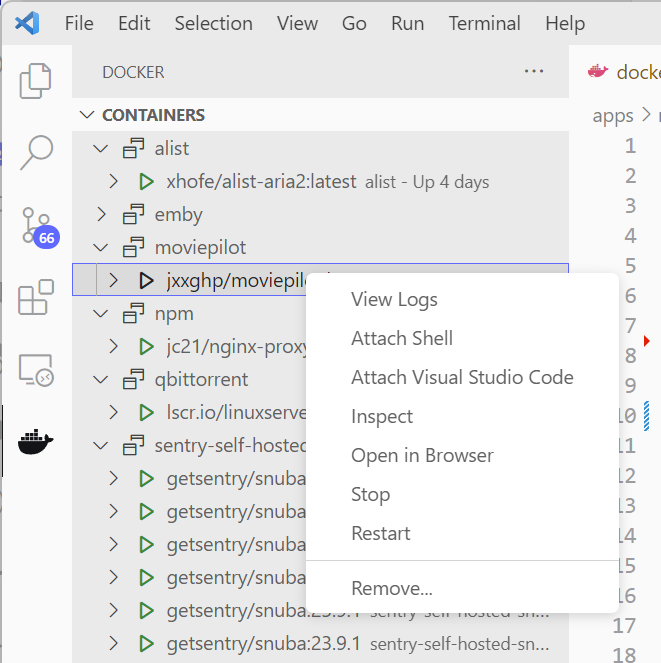
This covers most Docker operations and saves me from using Portainer or the CLI.
Git GUI integration
VS Code has strong Git GUI integration: view history, compare diffs, switch branches, merge, push, and pull—all in the UI.
Rich themes and extensions
If you already use VS Code, you can keep your preferred aesthetics. VS Code also has a much richer theme ecosystem than other terminal managers, plus a huge extension marketplace.
Other
VS Code is cross‑platform, multilingual, and free.
How to use VS Code for server management
You need:
- A computer that can run VS Code
- Official VS Code
- SSH keys configured
- Remote SSH extension
That’s basically it—the key is the Remote SSH extension.
Configure SSH keys
Generate SSH keys on your computer and add the public key to your server for passwordless login. You can find guides online for this.
Configure Remote SSH
After installing Remote SSH via this link, follow these steps:
- Click the Remote SSH icon in the lower‑left corner.
- Choose “Connect to Host”.
- Click “Configure SSH Hosts”.
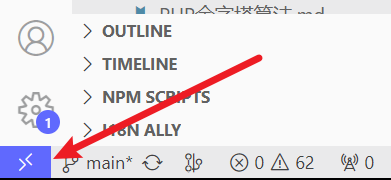
Then configure the server IP and user in VS Code. Example:
Host server1
    HostName server 1 IP
    User username

Host server2
    HostName server 2 IP
    User username
After that, you can connect directly from the lower‑left corner.
Plugins and recommendations
Monitor Pro
Resource monitoring, developed by me.
Monitor Pro is a real‑time resource monitor that tracks CPU, memory, network, file system, battery percentage, and charging state. It supports custom ordering and refresh intervals and offers high‑usage alerts. Suitable for developers, sysadmins, and general users.
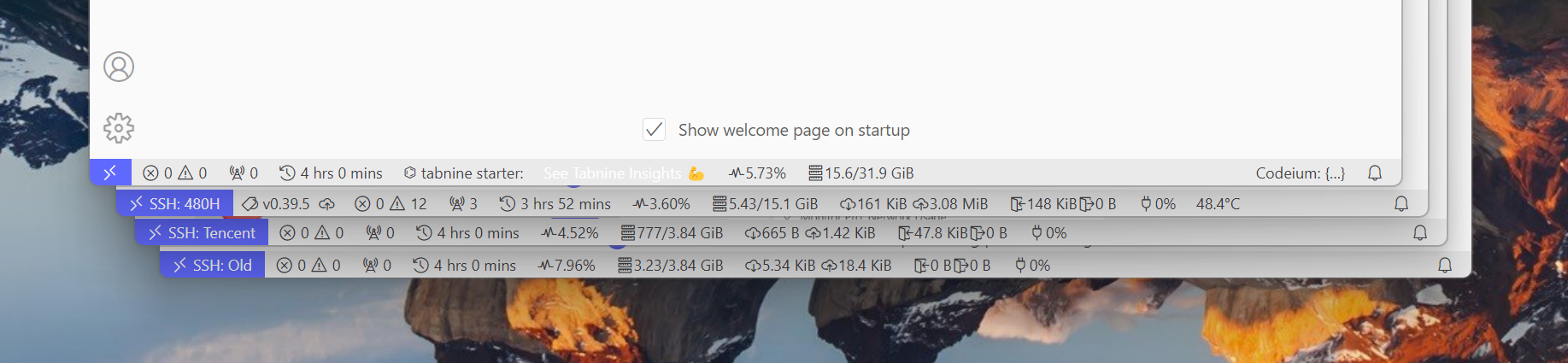
https://marketplace.visualstudio.com/items?itemName=nexmoe.monitor-pro
Docker extension
If you deploy apps in Docker containers, this helps you manage and debug them inside VS Code.
Wakatime
Track how much time you “slack off” on servers.
zsh and ohmyzsh
Use ohmyzsh and its ecosystem to get auto‑completion and correction in your terminal.